

Getting started
How Backchannels works
A guide to finding, filtering, and unlocking verified B2B buyers - covering filters, credits, saved searches, and the contacts table.
Overview
Quick start
- 01
Apply filters
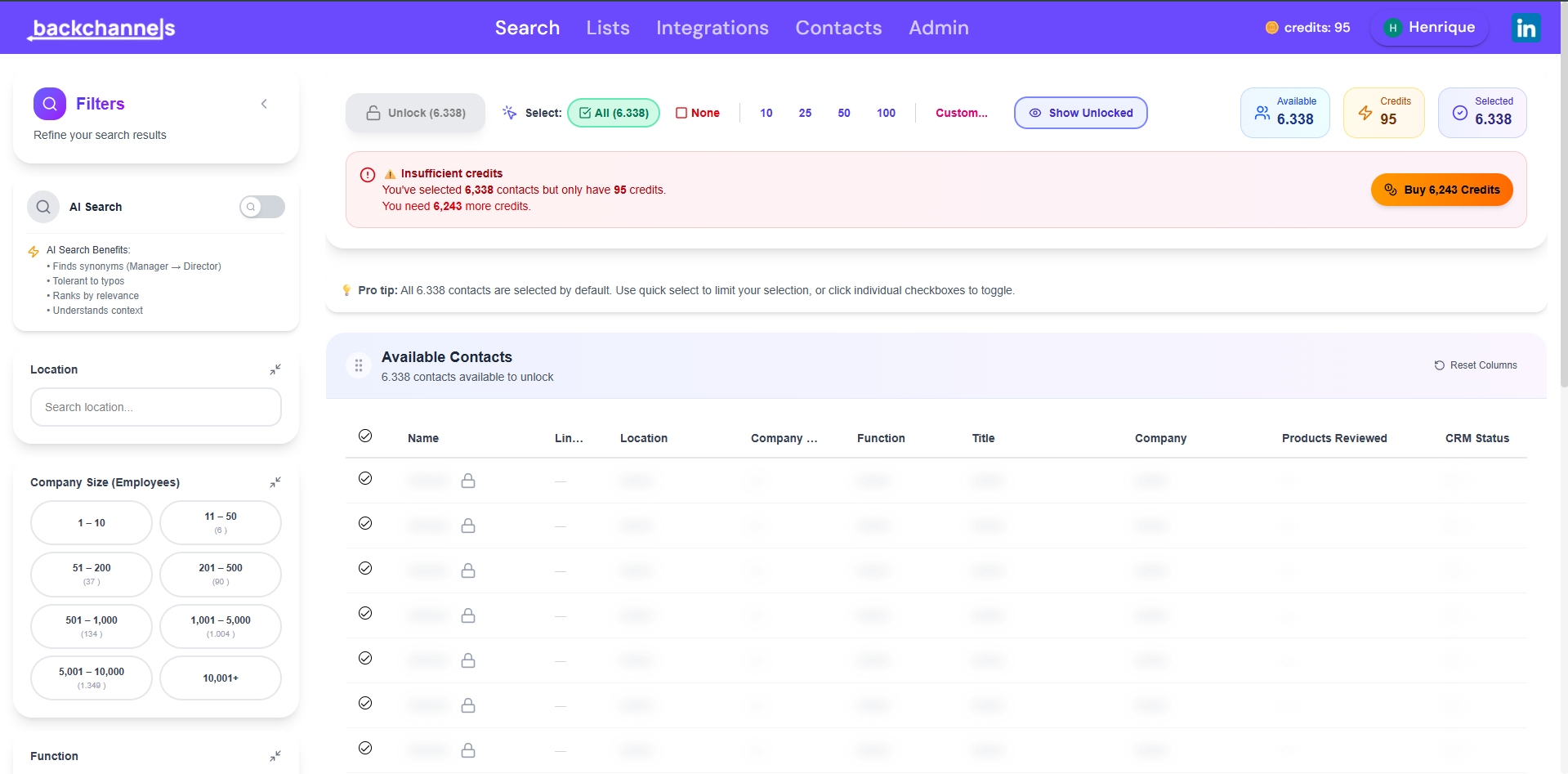
Use the left sidebar to narrow contacts by location, company size, function, title, company, products purchased, or CRM status. Click Apply Filters when ready.
- 02
Browse results
The contacts table shows all matching contacts. Most fields are blurred until unlocked - you can preview name and basic company info before spending credits.
- 03
Select contacts
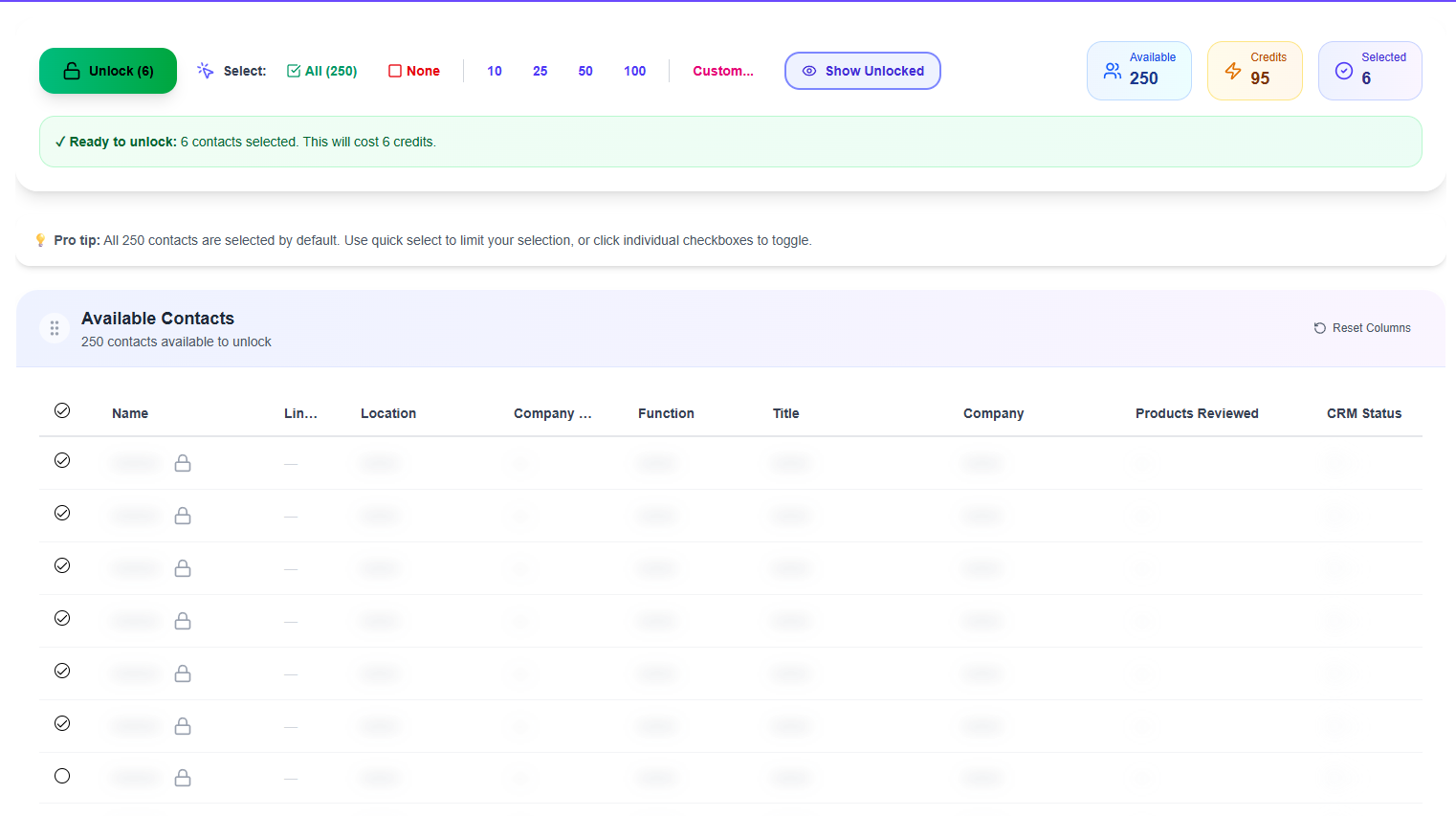
The first 50 matching contacts are pre-selected (fewer if you have fewer credits). Use Select in the toolbar to pick All, None, or a set number, or click individual rows to toggle.
- 04
Unlock and export
Click Unlock Selected, check the count and credit cost, and confirm to reveal full details. Then export to HubSpot or Salesforce (Starter plan and above).
Filters
Search filters
The sidebar has 7 independent filters. Each is optional - combine them freely. Results update only after you click Apply Filters. The count shown beside each option reflects how many contacts carry that value.
Filter by country or continent. Selecting a continent (e.g. Europe) automatically includes all countries within it.
e.g. United States, Europe, Brazil
Select one or more employee-count brackets - useful for targeting SMBs, mid-market, or enterprise simultaneously.
e.g. 11–50, 51–200, 201–500
The department or business function. Great for finding Engineering, Marketing, Finance, or Operations personas at scale.
e.g. Engineering, Marketing, Sales
Specific job titles. Supports partial matching - 'Director' surfaces 'Director of Marketing', 'Sales Director', etc.
e.g. VP of Engineering, Head of Growth
Filter by specific company names when you know exactly which accounts to target.
e.g. Salesforce, HubSpot, Stripe
Find contacts who have reviewed or evaluated specific products. Signals active buying intent.
e.g. Salesforce CRM, Notion, Slack
Filter by whether a contact is already in your connected CRM (Starter plan and above). Helps you find net-new contacts only.
e.g. Not in CRM, HubSpot
Each filter card has its own Clear button. The sidebar header also shows Clear All whenever any filter is active. The sidebar can be fully collapsed to give you more table space.
Contacts
Unlocking contacts
What unlocking reveals
By default all contacts are locked - fields are blurred. Unlocking 1 contact costs 1 credit and reveals:
- Full name
- Email address
- Phone number
- LinkedIn profile URL
- Company details
- Products purchased
Selecting contacts
The first 50 matching contacts are pre-selected. Refine with:
- Quick select - Type a number in the toolbar - "50" selects the first 50.
- Individual toggle - Click any row or its checkbox to include or exclude it.
- Shift-click - Hold Shift and click to select a range of rows.
- Select All / Clear - Toolbar buttons for selecting everything or starting fresh.
After unlocking - export and sync
HubSpot auto-sync
Starter plan and above. Once connected, unlocked contacts export to HubSpot automatically on the next sync (every 15 minutes by default).
Salesforce auto-sync
Starter plan and above. Same for Salesforce; duplicate prevention is applied on export.
My Contacts tab
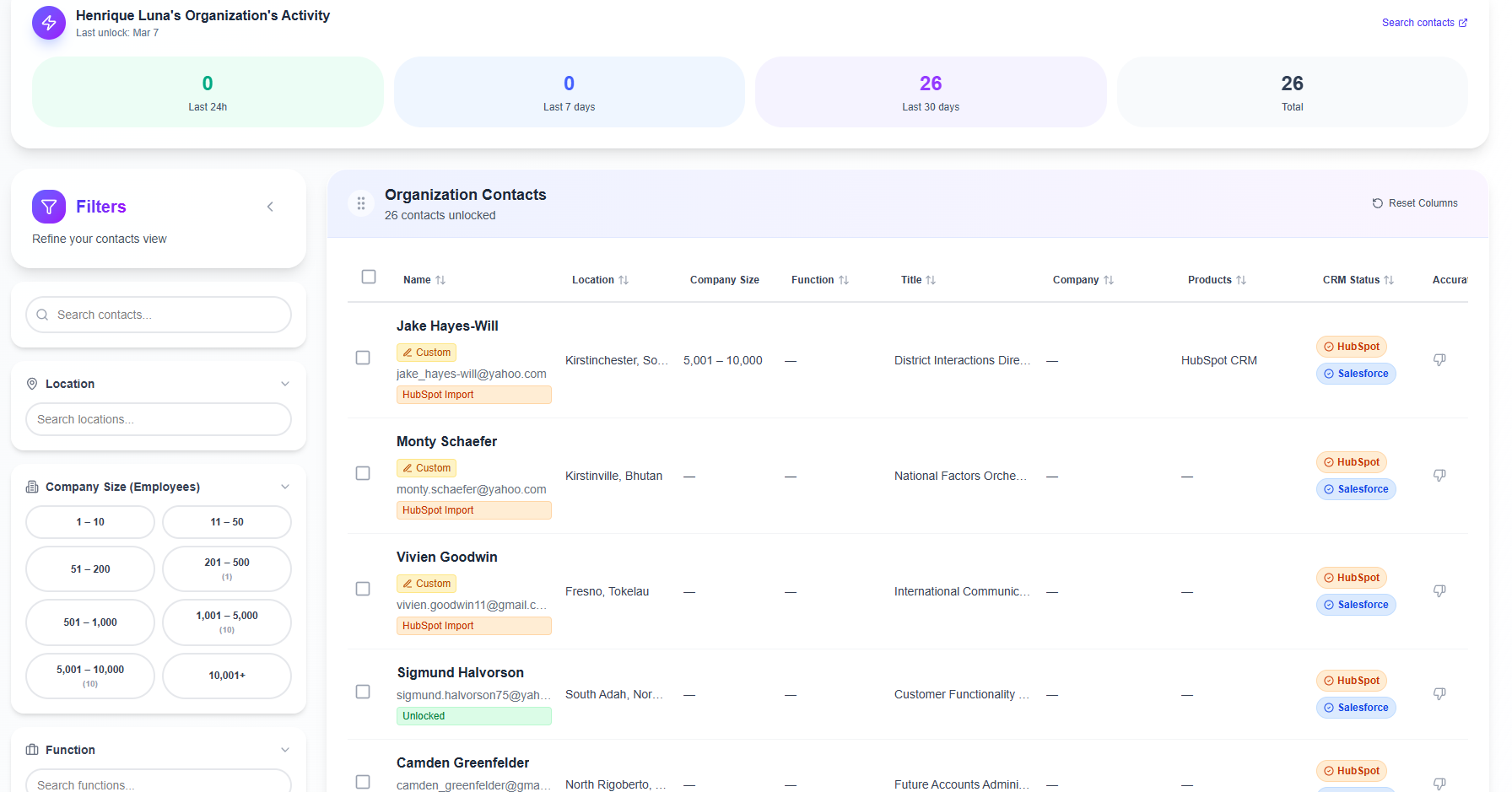
All unlocked contacts are saved to your account and accessible from the Contacts tab.
Billing
Credits
1 credit = 1 contact unlocked
Credits are shared across your entire organization and deducted at the moment of unlock - not when browsing.
- Every plan adds credits each month; paid plans roll unused credits over for one month.
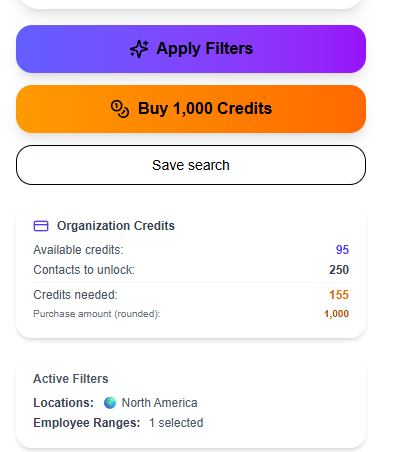
- The sidebar shows your balance vs. contacts to unlock in a live summary.
- If you don't have enough credits, the upgrade dialog suggests the plan that covers the gap.
Credits summary (sidebar)
Workflow
Saved searches
Saved searches store a named snapshot of your current filters so you can reload them in one click. Perfect for recurring workflows - "EMEA SaaS Finance Leaders", "SMB Marketing Directors US", etc.
Interface
Contacts table
Available Contacts
All contacts matching your current filters. Most fields are blurred until unlocked.
Unlocked Contacts
Contacts your account has already unlocked. Toggle with "Show Unlocked" in the toolbar. Newly unlocked contacts are highlighted in green.
Best practices
Pro tips
Use continents for broad geo targeting
Selecting 'Europe' automatically includes all European country codes. Combine with a company size filter for a quick region + segment combo.
Save your ICP as a search
Build your ideal customer profile with filters, then save it. Reload it weekly to find new contacts added since your last run.
Check counts before applying filters
Every filter option shows a contact count. Use these to estimate list size before clicking Apply.
Quick-select before unlocking
The first 50 contacts are pre-selected. Unlock those to test list quality before selecting more.
Use CRM Status = Not in CRM
Surface only contacts you don't already have. Keeps prospecting focused on net-new buyers and avoids importing duplicates.
Ready to find your next buyer?
Apply filters, select contacts, and build a verified buyer list in minutes.